A practical guide · By the WidgetFlow team
What is a widget?
A widget is a focused piece of a software interface that displays information or lets you do a specific job. A weather panel, a calendar view, and a sticky note can all be widgets. What a widget can do depends on the system that hosts it.
This guide explains the main meanings, then shows how movable canvas widgets work in WidgetFlow’s real browser demo.
Different kinds of widgets
Interface widgets
Buttons, text fields, sliders, and other controls are often called widgets in interface development. They are the smaller parts used to build an application.
Home screen and desktop widgets
A weather forecast or calendar panel puts useful information within reach. Apple’s WidgetKit and Android app widgets each have their own platform rules and development tools.
Website widgets
A site can embed a focused tool such as a booking calendar or support panel. Its behavior, storage, and permissions depend on the service behind it.
Canvas widgets
In WidgetFlow, a widget is a movable, resizable window on an infinite canvas. You can arrange tools and project material beside each other instead of switching between separate views.
For native platform details, see Apple’s WidgetKit documentation and Android’s app widget overview. These are separate ecosystems; WidgetFlow does not install their widgets.
Explore WidgetFlow’s canvas workspaceA note beside the work it belongs to
Imagine planning a small website. Keep a Sticky Note with the main goal beside Library, where the brief and next tasks live. Move the windows together, zoom out to see the layout, then focus on one record to write. The arrangement gives the project a place you can return to.
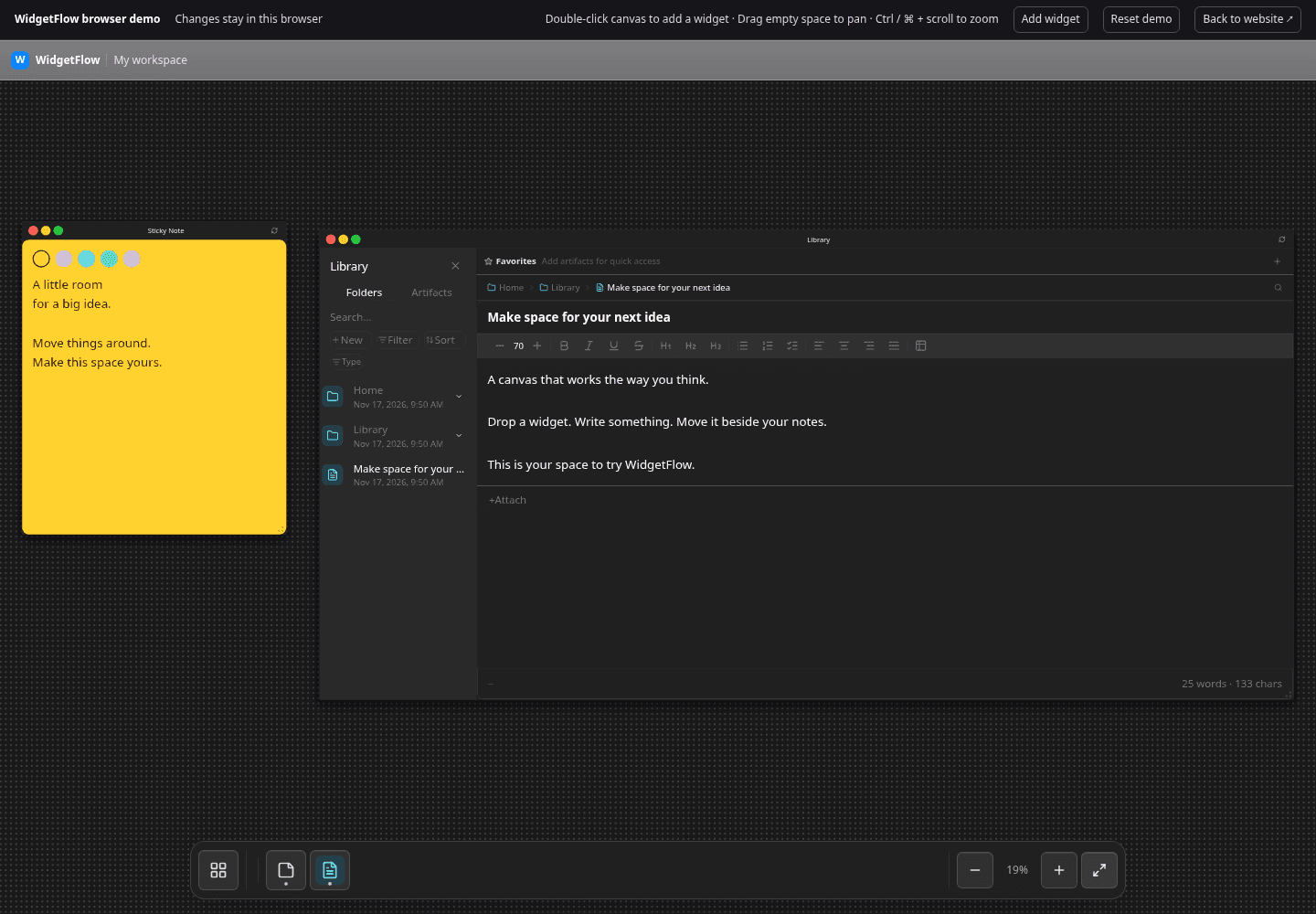
Try a canvas in four steps
Drop a Sticky Note
Choose Add widget, then Sticky Note. Write a short reminder and choose a color. Add a second note to see how separate windows fit together.
Arrange your canvas
Drag a widget by its title bar and resize it from its corner. Drag empty canvas space to pan. Use the zoom controls, or Ctrl / ⌘ + scroll, to move between detail and the bigger picture.
Open Library
Add a Library widget. Create a Document for a project brief, a Task for the next action, and a Folder to organize the records. Open a record to edit it.
Focus, then return
Use a widget’s fullscreen control when you need more editing room. Return to the canvas and use Fit all to bring the widgets back into view.
Choose a widget around the job
- Use a Sticky Note for a short reminder you want to keep visible.
- Use a Document in Library for a brief, decision, or longer explanation.
- Use a Task in Library for an action you need to track.
- Use a Folder in Library to organize related records. A folder is an artifact inside Library, not a separate canvas widget.
What you can try today
No account is needed. Changes are saved locally in this browser, with in-memory editing if browser storage is unavailable. Browser-local demo data is not a backup or a desktop workspace.
The browser demo includes Sticky Note and Library widgets only. AI, collaboration, attachments, custom widget installation, and desktop connections are not available in the demo.
Use a desktop browser with a mouse or trackpad for interactive editing. Mobile and touch-only devices show a static preview.
WidgetFlow is the local-first desktop workspace at widgetflow.ai. Public desktop installers are in preparation. There is no public download yet.
Keep exploring
Arrange Sticky Notes and edit Library records without an account.
Read the early host contract for custom canvas widgets.